Stop Renting Your Stack: Lock Down a VPS in 30 Minutes
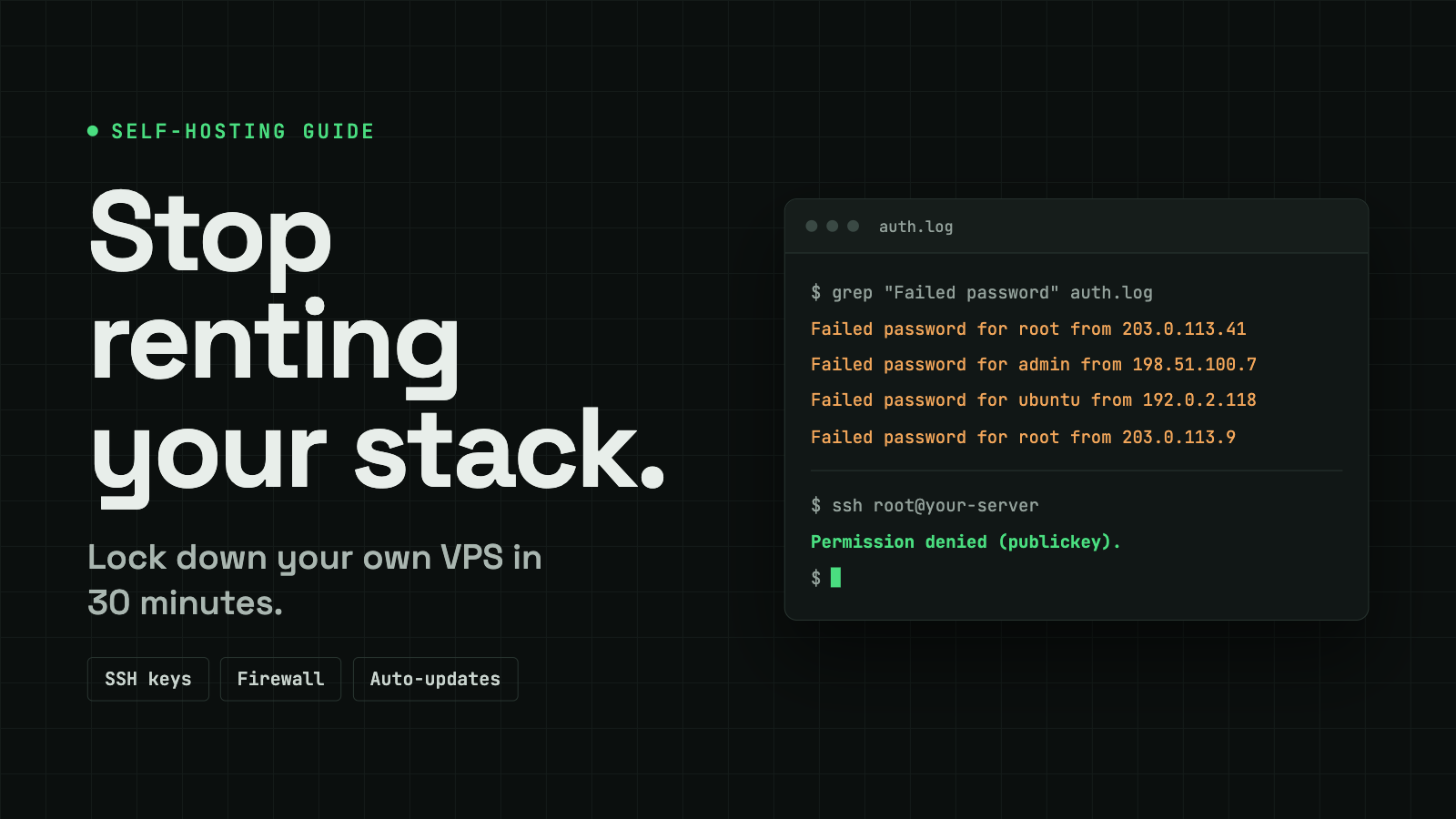
Spin up a fresh VPS, wait ten minutes, and run this:
sudo grep "Failed password" /var/log/auth.log | tail -n 20You will see login attempts from IP addresses you have never heard of. Bots scan the entire internet around the clock, trying default usernames and weak passwords on every server they find. Yours is on the list before you have deployed a single thing.
Most developers read that and conclude that servers are scary, so they keep paying a platform to hide the server from them. That is the wrong conclusion. Those bots are beaten by about 30 minutes of one-time setup, and this post is that setup.
Why you should own a server
A 1 GB RAM, 1 CPU, 10 GB disk box running Ubuntu is enough for a few static sites, a couple of Node.js apps and a database or two. That one small machine can replace a surprising number of monthly bills.
You rent today | You could run instead |
|---|---|
Vercel, Netlify, Heroku, Render, Railway, Fly.io | Nginx or Caddy plus your own apps, or a self-hosted PaaS like Dokku, Coolify or CapRover |
AWS RDS, PlanetScale, Neon | PostgreSQL, MySQL, MongoDB or Redis on your own box |
Cloud storage and photo services | Nextcloud, PhotoPrism |
Streaming and media apps | Plex, Jellyfin, Emby |
Hosted password managers | Bitwarden, Passbolt |
Hosted error tracking | Self-hosted Sentry |
The money is only part of it. Running your own server teaches you what the platforms abstract away: networking, processes, permissions, TLS, backups. That knowledge makes you better at using managed services too, because you finally know what you are paying them for.
One honest caveat: a server is a responsibility. It needs patching and attention, which is exactly why managed services exist. The steps below automate most of that, but the box is yours, and so is the pager.
The lockdown, step by step
These commands assume Ubuntu or Debian. Replace afaq with your username and SERVER_IP with your server's public IP.
1. Connect and patch everything
ssh root@SERVER_IPType yes at the fingerprint prompt. You should only see that prompt on the first connection; if it reappears later and you changed nothing, treat it as a warning sign.
apt update && apt upgrade -yAttackers mostly exploit old, known bugs, so a patched system removes the easy wins. If the kernel was upgraded, reboot before going further:
ls /var/run/reboot-required && rebootThen log back in and run apt upgrade once more to catch anything that was held back.
2. Change the root password
Your provider's dashboard probably shows the root password in plain text. Replace it with one only you know.
passwd3. Stop working as root
Root can do anything, including destroy the machine with one typo. Create a normal user that borrows root powers only when needed, through sudo.
adduser afaq
usermod -aG sudo afaq
groups afaq
Use a different password from root. Then log out and back in as the new user to confirm it works:
ssh afaq@SERVER_IP
sudo apt update
4. Switch to SSH keys
Passwords can be guessed. A key pair cannot, in any practical sense. Generate the key on your own computer, never on the server:
ssh-keygen -t ed25519 -C "[email protected]"
ssh-copy-id afaq@SERVER_IP
ssh-copy-id appends your public key (~/.ssh/id_ed25519.pub) to ~/.ssh/authorized_keys on the server. The public key is safe to share; the private key never leaves your machine. To do it by hand instead:
mkdir -p ~/.ssh && chmod 700 ~/.ssh
nano ~/.ssh/authorized_keys   # paste the public key, save
chmod 600 ~/.ssh/authorized_keys
Log out and back in. If you are not asked for a password, the key works. Repeat this for every device you connect from.
5. Turn off password login and root login
This is the step that makes the bots irrelevant. Open the SSH config:
sudo nano /etc/ssh/sshd_configSet these three lines, removing any leading #:
PubkeyAuthentication yes
PasswordAuthentication no
PermitRootLogin no
Then check for overrides. Many providers drop a file in /etc/ssh/sshd_config.d/ that quietly turns password login back on.
sudo grep -r PasswordAuthentication /etc/ssh/sshd_config.d/Set any match to no, then restart SSH:
sudo systemctl restart sshKeep your current session open and test from a second terminal. ssh root@SERVER_IP should fail with Permission denied (publickey), and ssh afaq@SERVER_IP should log you straight in. If you lock yourself out, the open session is your way back.
6. Close every port you are not using
A port is a door into your server. Right now you need exactly one: 22, for SSH. If your provider has a firewall panel, use it. Otherwise use ufw, which ships with Ubuntu:
sudo ufw default deny incoming
sudo ufw default allow outgoing
sudo ufw allow OpenSSH
sudo ufw enable
sudo ufw status
Allow SSH before you enable the firewall, or you will cut off your own connection. Open 80 and 443 later, when you actually run a web server.
Two optional extras:
- Restrict SSH to your IP. If you have a static IP,
sudo ufw allow from YOUR_IP to any port 22means nobody else can even knock. Skip it on a home connection whose IP changes. - Move SSH off port 22. This cuts log noise from lazy bots, but a port scan finds it in seconds. It is obscurity, not security, and with passwords disabled it is a matter of taste.
7. Let the server patch itself
A server you forget to update slowly becomes a vulnerable one. unattended-upgrades installs security patches in the background.
sudo apt install unattended-upgrades
sudo dpkg-reconfigure --priority=low unattended-upgrades
sudo systemctl status unattended-upgrades
Answer Yes in the wizard and check that the service shows as active. Only security updates are applied by default. To include regular package updates, automatic reboots or email alerts, edit /etc/apt/apt.conf.d/50unattended-upgrades and uncomment the lines you want.
The checklist
- System fully updated and rebooted
- Root password changed
- Non-root user created and added to
sudo - SSH key login working
- Password authentication disabled
- Root login over SSH disabled
- Firewall on, only needed ports open
- Automatic security updates running
Now go build something
Run that grep command again in a day. The bots are still knocking, and every one of them is bouncing off. They are trying passwords on a server that no longer accepts passwords.
That is the whole trick. For the price of a coffee a month and one focused half hour, you have a hardened machine that is entirely yours: no cold starts, no surprise invoice, no vendor deciding what you can run.
So pick one thing you currently pay a platform for, whether a side project, a database or a Discord bot, and move it this weekend.